Project Planner v0.7.0 — Effort Tracking, Auto-Scheduling & Dependency Arrows
February 22, 2026
Version 0.7.0 is the biggest update to Obsidian Project Planner yet. This release brings three headline features that put it on par with Microsoft Project and Premium Planner: full effort tracking, dependency-driven auto-scheduling, and visual dependency arrows on the Timeline.
⏱️ Microsoft Planner-Style Effort Tracking
Tasks now support Effort Completed, Effort Remaining, and a read-only Effort Total (the sum of the two). A % Complete value is automatically derived from effort, and Duration is calculated from the gap between Start Date and Due Date.
The real power is in the auto-sync behavior modeled after Microsoft Planner:
- Auto-deduction — Enter 4 hours completed on a 10-hour task and remaining drops to 6 automatically.
- Status ↔ Effort sync — Mark a task "Completed" and all remaining hours move into completed. Hit 100% complete and the status flips to "Completed" for you. Drop below 100% from Completed and it resets to "In Progress."
- Bidirectional view sync — Edit effort in Grid View and see it update instantly in Task Detail, and vice versa.
Effort fields appear across every view:
- Grid View — Five new columns (% Complete, Effort Done, Effort Left, Effort Total, Duration) with inline editing, drag-and-drop reordering, and show/hide toggles.
- Task Detail View — A new Effort section with a Duration row, % Complete display, and a Completed / Remaining / Total grid.
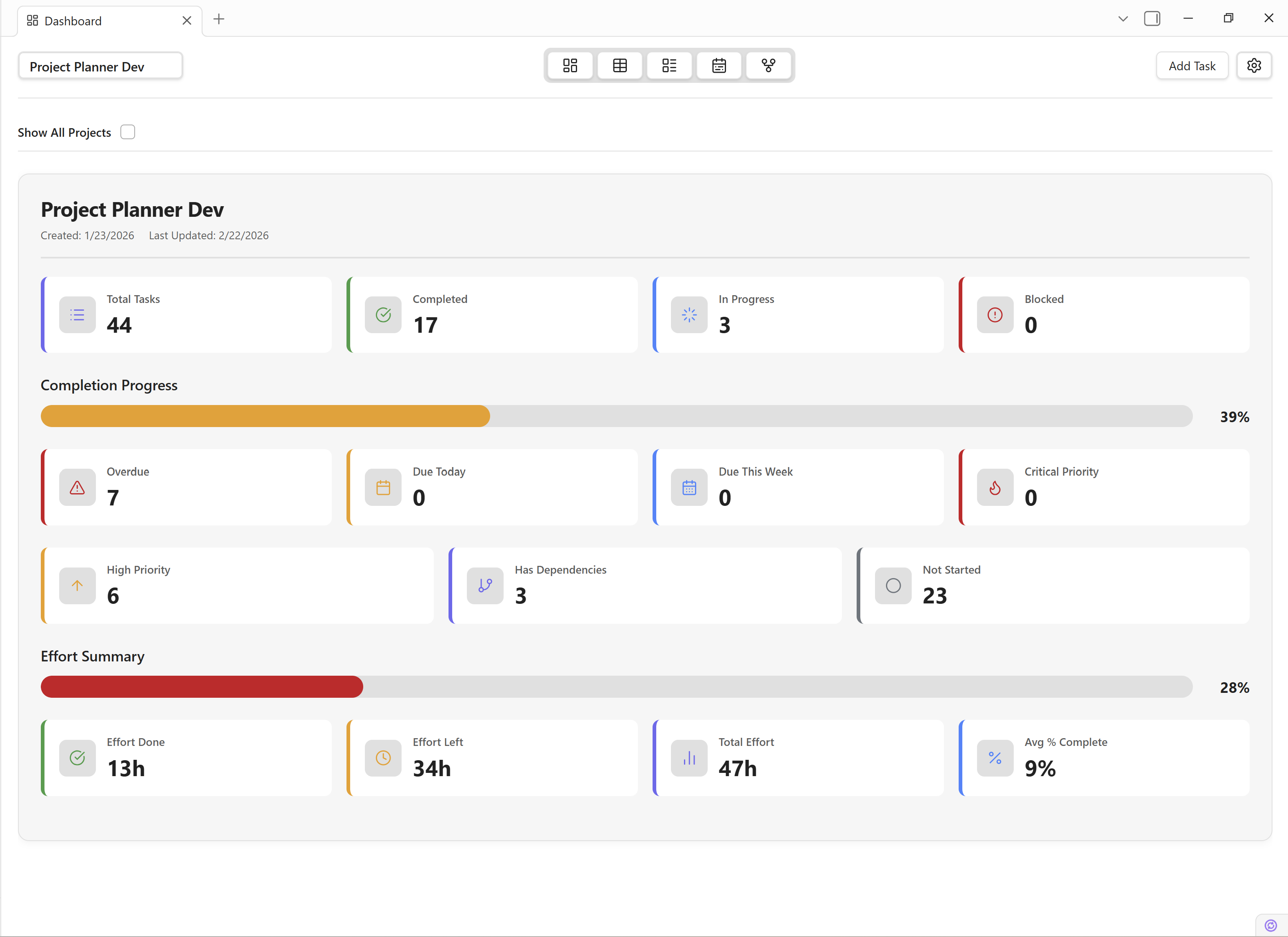
- Dashboard View — An Effort Summary card with a progress bar and KPI tiles for Total Effort, Completed, Remaining, and Average % Complete. It only appears when your tasks actually have effort data.
Effort values sync bidirectionally to YAML frontmatter in your task markdown files (effortCompleted, effortRemaining, percentComplete), so everything stays in sync with your vault.
📐 Dependency-Driven Auto-Scheduling
This is the feature that turns Project Planner into a real scheduling tool. When a predecessor task's dates change, all dependent tasks automatically shift forward — just like MS Project and GanttProject.

All four dependency types are supported:
- Finish-to-Start (FS) — Successor starts the day after predecessor finishes.
- Start-to-Start (SS) — Both tasks start together.
- Finish-to-Finish (FF) — Both tasks finish together.
- Start-to-Finish (SF) — Successor finishes when predecessor starts.
Key behaviors:
- Duration preservation — The number of days between a task's start and due date is maintained when it shifts.
- Forward-only scheduling — Tasks are only pushed later, never pulled earlier, preventing unexpected schedule compression.
- Recursive cascade — Changes propagate through the entire chain (A → B → C all shift).
- Circular dependency guard — A visited-set prevents infinite loops.
- Markdown sync — Cascaded date changes automatically sync to your vault files.
You can toggle auto-scheduling on or off in Settings → Dependency Scheduling. When it's active, dependency cells in Grid View show a 📐 icon with an "(auto-scheduled)" tooltip.
🔗 Timeline Dependency Arrows
The Timeline / Gantt view now draws SVG connector arrows between linked task bars — the visual you'd expect from any serious project management tool.
- Each dependency type (FS, SS, FF, SF) draws from the correct edge of predecessor to successor.
- Arrows use L-shaped orthogonal routing (horizontal → vertical → horizontal) with smart detour paths when bars overlap.
- Lines are styled with the theme accent color and arrowhead markers.
- A toolbar toggle lets you show or hide arrows with a single click.
📊 Parent Task Roll-Up
Parent tasks now automatically calculate their fields from subtasks, matching MS Project behavior:
- Dates — Parent Start = earliest child start; Parent Due = latest child due.
- Effort — Parent Completed/Remaining = sum of children.
- % Complete — Duration-weighted average across children.
- Status — 100% complete auto-sets parent to "Completed"; dropping below resets to "In Progress."
- Upward cascade — Grandparent updates when a grandchild changes.
Rolled-up fields are shown as read-only in both Grid View (italic text with a Σ indicator) and Task Detail View, with a "Rolled up from subtasks" tooltip so it's always clear which values are calculated. Both roll-up and auto-scheduling can be toggled independently in Settings.
🐛 Bug Fixes
- Grid View column drag-and-drop — New columns added after initial setup are now properly included in the column order array. Previously, missing columns caused
indexOf()to return-1, silently breaking reordering. - Grid View cell rendering — Refactored from hardcoded if-blocks to a
cellRenderersmap, eliminating header/cell mismatch bugs when columns are reordered. - Grid View inline editing — The editing flag is now cleared before the update call instead of after, so the view reflects changes immediately.
- Scroll position preservation — All views (Board, Task Detail, Dashboard, Timeline) now preserve scroll position across re-renders. Previously, any data change caused a full DOM rebuild and lost the user's scroll position.
🏗️ Under the Hood
This release also includes a major internal quality pass:
- Eliminated 35 unnecessary
as anytype casts across the codebase, improving type safety. - Consolidated ~180 lines of duplicate context menu code in Grid View.
- Fixed CSS inconsistencies (duplicate rule blocks, color mismatches).
- Added proper TypeScript interfaces for all grid view settings.
- Full test suite passing: 318 tests, 12 suites, 0 failures.
Get Started
Install for the first time from the installation guide. Full changelog at projectplanner.md/changelog.
Questions or feedback? Join the Discord or open a discussion on GitHub.